Rummy Safety: Manage Lock-Screen Previews During a Session
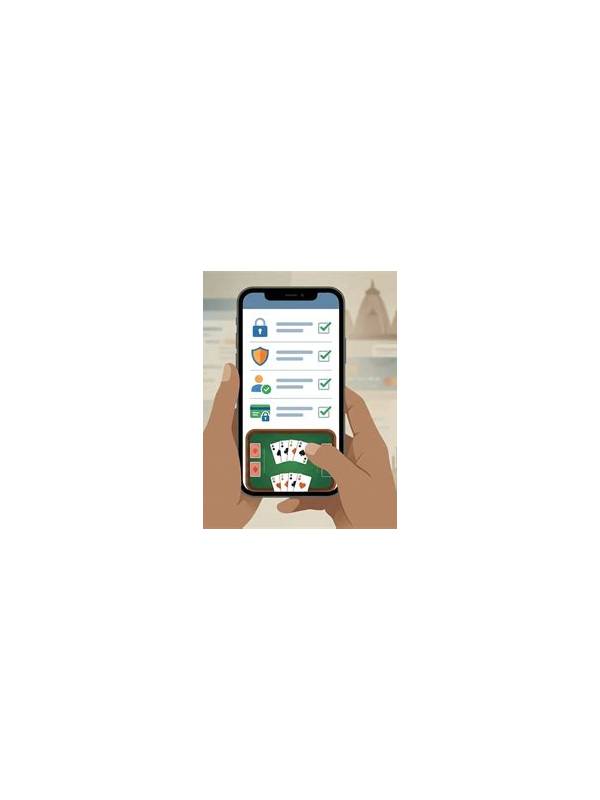
A rummy session can involve more than cards. Notifications may display account names, balances, transaction references, messages, or one-time actions while a phone is locked. Anyone nearby may be able to read those previews. A quick privacy check before playing can reduce accidental exposure without changing how the game works.
Begin with the device’s notification settings. Look for options such as showing previews, displaying sensitive content, or allowing notifications on the lock screen. The exact wording differs by operating system and device manufacturer. Choose a setting that hides message details until the device is unlocked. If you need alerts, keep a general notice such as “new notification” while concealing its contents.
Review individual app settings as well. A game app, payment app, email account, or messaging service may have its own preview control. Do not assume that a phone-wide setting overrides every application. Check which apps can appear during a session and disable alerts that are not needed. Calendar, banking, and identity-related notifications deserve particular attention because their previews can contain more sensitive information than a game alert.
Use a session-friendly setup. Enable a built-in focus or do-not-disturb mode if it allows important calls to pass through. Avoid installing an unfamiliar utility that promises to manage notifications, especially if it requests accessibility access, screen recording, contacts, or remote control. The safest approach is usually a native device feature with a clear purpose. Test the setting by locking the screen and sending a harmless notification from a second device or account.
Be careful with screenshots and screen sharing. A preview hidden on the lock screen may still appear in a recording, desktop notification, connected watch, or car display. Before sharing a screen, close unrelated panels and check the edge of the display for banners. Never send a screenshot containing passwords, one-time codes, payment details, or account identifiers. Crop or blur private data before keeping a troubleshooting image.
Privacy settings do not replace account security. Use a strong device passcode, install updates from the normal system channel, and avoid sharing the unlocked phone during a money-related action. Support staff should not need your password or one-time code. If a message asks you to reveal either, stop and use the official help route instead of replying through the notification.
Make the check part of your routine: lock-screen preview, connected devices, focus mode, and a short test. Revisit it after a system update or when installing a new app. A few minutes of preparation can keep ordinary game activity from exposing information that belongs only to you.
Related Post
Rummy FAQ: Can Two Players Read the Same Discard?
The same visible discard can support different conclusions for different players because hand structure and [...]
Rummy Safety: A Responsible Break Schedule for Long Sessions
Plan regular breaks so concentration, spending decisions, and enjoyment do not deteriorate during extended play. [...]