Rummy Safety: Set Device Notifications Without Exposing Private Data
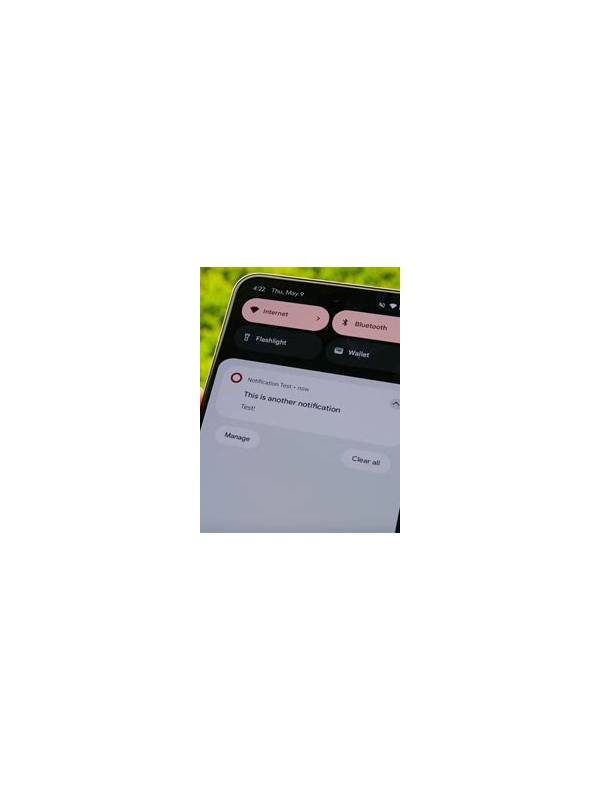
Notifications are useful when they tell you that an account needs attention, but they can also display private details to anyone near the device. A few settings can improve both concentration and privacy without requiring complicated tools.
Start with lock-screen previews. Set sensitive app notifications to show an icon or a generic message rather than full text. This is especially important for account notices, payment updates, support conversations, and verification prompts. Test the setting by locking the phone and sending yourself a harmless notification. Confirm that the screen reveals no unnecessary detail.
Next, separate reminders from urgent security alerts. A practice reminder or table invitation may be safe to mute during focused time. A sign-in warning or account-change notice deserves a visible channel. If the app does not offer categories, use the device’s notification controls carefully and review them after an update.
Shared devices need an extra check. Remove notification access for accounts that are no longer used, sign out of profiles that belong to another person, and avoid saving private messages in a notification history. If a family tablet is used by several people, a separate device profile is safer than relying only on hidden previews.
Do not treat a notification as proof that a message is genuine. A display name or logo can be copied. Open the app through a known route, inspect the account’s own message center, and avoid tapping links that ask for a password or payment action. Security alerts are helpful signals, not instructions to skip verification.
Finally, check whether notifications appear in screenshots, recordings, or desktop mirrors. Disable mirroring while handling account or payment information. Review settings monthly and after changing phones. The safest arrangement is one that keeps routine reminders quiet, leaves genuine security events noticeable, and exposes the least personal information on a locked or shared screen.
Consider sound as well as text. A private alert tone can draw attention to an account event even when the screen is hidden, while a generic tone can prevent people nearby from learning which service you use. Keep biometric or passcode prompts private, and do not announce account details through a smart speaker or car display. Privacy is a chain of small surfaces, so review every place where the device repeats a notification.
If an alert seems urgent, take a breath before opening it. Check the sender inside the verified app and consider whether the request matches anything you recently did. Calm verification is part of security because pressure makes familiar safety checks easy to skip.
Related Post
Rummy Safety: Check Permissions After Installing a Game App
Reviewing app permissions after installation can reveal unnecessary access and improve control over personal information. [...]
Rummy Safety: Keep Notifications From Creating Pressure
Managing notifications can protect attention and reduce the pressure to make rushed gaming or account [...]