Rummy Account Privacy: A Checklist for Notifications and Screenshots
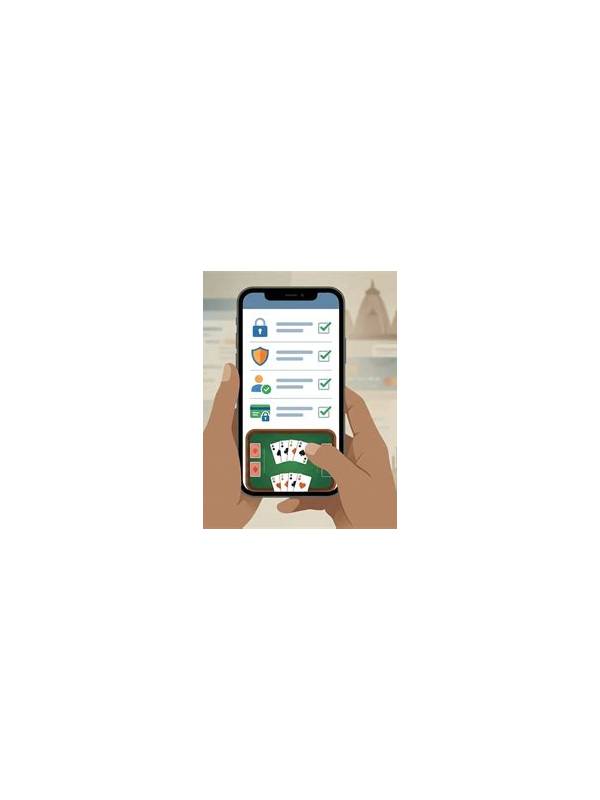
Privacy problems around online rummy often come from ordinary phone habits rather than complicated attacks. Notifications can appear on a lock screen, screenshots can expose account identifiers, and a shared device can retain a session after you walk away. A short privacy checklist helps reduce these avoidable exposures.
Start with notification previews. Review whether messages from a gaming app show balances, account names, or transaction details while the device is locked. If other people can see the screen, turn off sensitive previews or use a less revealing notification setting. Check the change by locking the device and sending a test notification from a safe source.
Treat screenshots as public until you have deleted or secured them. Before sharing a play position or technical problem, crop out usernames, account numbers, balances, payment references, and unrelated notifications. A blur tool is not always reliable if the original image remains in a cloud backup. When possible, describe the issue with text instead of sending a full account screen.
On a shared computer or phone, sign out when finished and do not save passwords in a browser profile that others use. Lock the device when stepping away. Review active sessions and connected devices through the service’s official account settings, not through links in unexpected messages.
Be cautious with support requests. Use the platform’s verified help channel and never provide a password, one-time code, or full payment credential. Support staff should not need your secret authentication information to investigate an ordinary account issue. If a request feels urgent or asks you to install an unknown application, pause and verify it independently.
Privacy is also a social practice. Avoid posting a live table, private chat, or another player’s details without consent. A few seconds of review before sharing can protect everyone at the table. Recheck these settings after a major device update, because notification and permission defaults can change. Keep account recovery information private and stored through the service’s approved recovery method. Do not place backup codes in a screenshot folder or an unlocked notes app on a shared device. If you suspect that another person has accessed the account, change the password through the official service, review sessions, and contact verified support promptly. Also review photo backups and recent files if a screenshot included private details. Remove unnecessary copies from shared albums and devices, while remembering that deletion may not remove a copy already sent to someone else. When discussing a technical problem, provide only the minimum information needed for diagnosis and keep the rest of the account private.
Related Post
Rummy Tips: Compare Draw Pile and Open Pile Information
Thinking about what each pile tells you can improve a draw decision without pretending that [...]
Rummy FAQ: What Makes a Discard Safe Enough?
Safety is a practical estimate, so use several signals before releasing a card in rummy. [...]