Rummy Device Accessibility Settings for Easier Card Reading
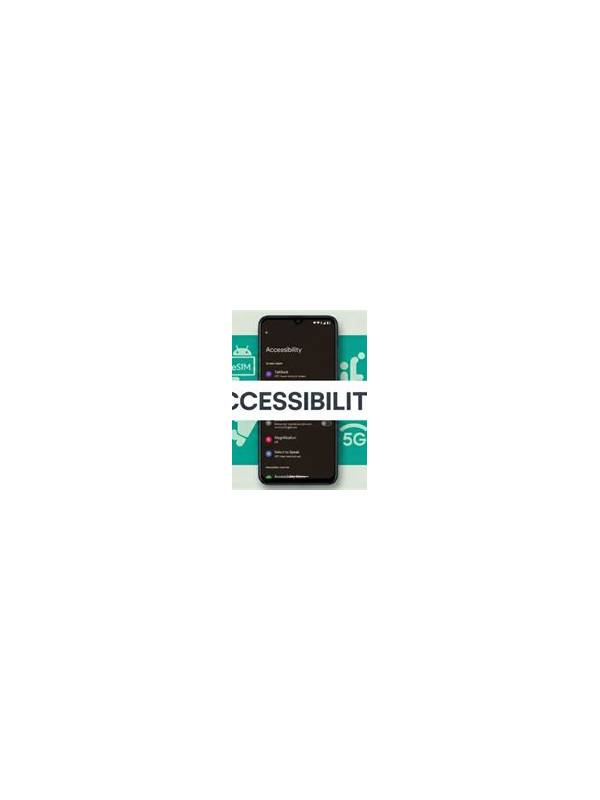
Clear visual information supports better decisions. Small cards, low contrast, or accidental taps can make a normal hand unnecessarily difficult. Device accessibility settings can improve comfort and reliability, although they should be tested before a serious session because every platform responds differently.
Start with text and display size. Increase the system font or display scale if menus and labels are hard to read, then check that the table still fits on screen. If important buttons move off-screen, reduce the scale slightly or use landscape mode. A readable layout is more useful than the largest possible symbols.
Review contrast and color settings. Do not rely on suit color alone to distinguish cards, since color-blindness modes or bright lighting can change how symbols appear. Prefer a layout that includes clear suit icons and rank letters. Take a screenshot in a practice environment if you need to compare settings without pressure.
Input settings also matter. If accidental touches are common, use a stable grip, a clean screen, and any available touch-delay or confirmation option that does not interfere with the table timer. Avoid enabling a feature you do not understand during a live hand. Test it with menus and a free practice mode first.
Protect comfort during longer sessions. Adjust brightness to the room, take regular eye breaks, and keep the device at a comfortable distance. Accessibility is not only about visibility; fatigue can reduce the accuracy of grouping and make the timer feel more urgent.
Finally, verify the platform’s own help information. Some tables offer card-size, animation, sound, or sorting controls. Choose settings that make the state of the hand obvious, and confirm that any automatic sorting does not hide a useful relationship. The goal is a reliable interface that lets you focus on the decisions rather than on finding the cards.
If you share a device, restore changes that affect another person’s normal use, or keep a separate profile when supported. Save changes before practice and ensure they do not alter security notifications. Interface improvements should increase clarity without hiding warnings, confirmation screens, or the information needed to leave a table safely.
Test the chosen layout with a complete sample hand, including a discard and a declaration screen. Some settings improve card size but make action buttons harder to distinguish. Fix that trade-off before playing for a result. Accessibility is successful when every important state is easy to identify and every action can be confirmed without strain.
Related Post
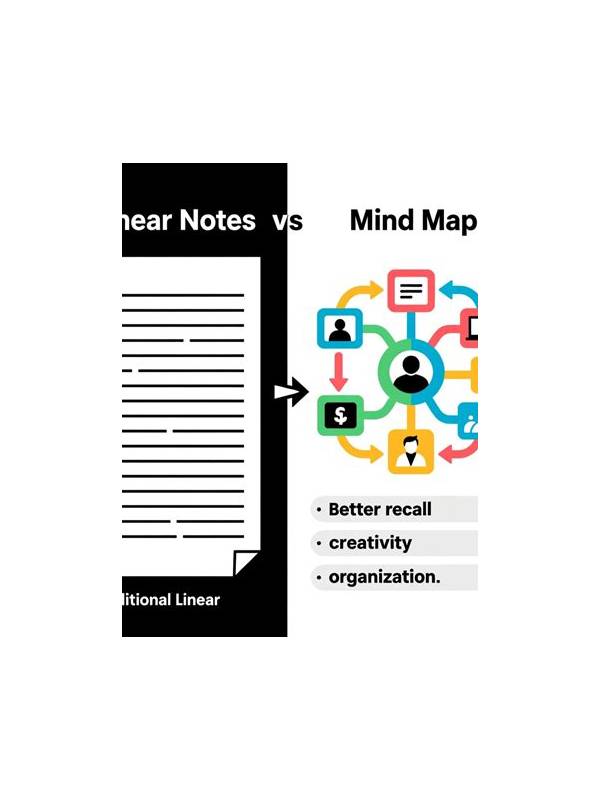
Rummy Comparison: Printed Notes Versus Mental Tracking
Compare written and mental tracking methods to find a rummy note system that supports focus. [...]
Rummy Tips: Use a Recovery Card in Every Plan
A recovery card gives an incomplete rummy plan a second job when its first expected [...]