Rummy Safety: Confirm Device Lock Before Play
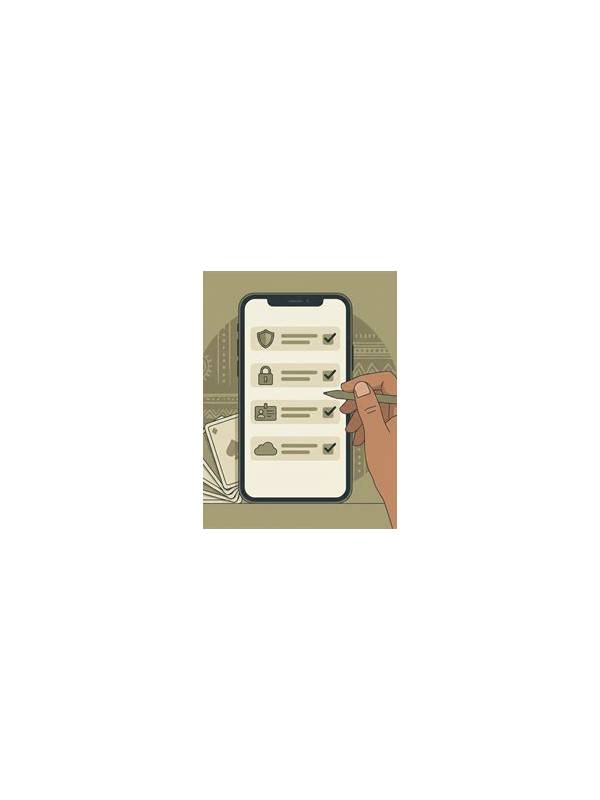
Before opening a rummy app, confirm that your device has a working screen lock. A passcode, pattern, fingerprint, or other supported lock reduces the chance that someone can access an account, payment area, or private table from an unattended device. This is a basic security habit, but it is easy to skip when you are eager to start.
Test the lock rather than assuming it is active. Lock the screen, wake it, and verify that it requests the expected method. If the device stays unlocked for a long period, review the automatic-lock setting. Choose a timeout that fits your normal use while avoiding a setting so long that a forgotten device remains open.
If you share a tablet or phone, use separate user profiles where available. Never rely on an open app screen as proof that another person cannot enter account settings. Sign out of sensitive sections, and avoid saving payment details on a device that others regularly use. Platform features differ, so follow the device maker’s current security guidance.
Public charging areas and borrowed devices deserve extra caution. Do not sign into a financial account on hardware you cannot inspect or control. If you must use a different device, verify the app source, avoid saving credentials, and sign out completely afterward. A device-lock habit cannot solve every risk, but it removes an avoidable one.
Keep notifications private as well. Message previews can expose account activity or personal details while the screen is locked. Disable previews if your device supports it, especially when playing in a shared space. Use headphones carefully and keep table information out of public view.
Device safety supports responsible play because it separates game access from accidental access. Make the lock check part of your pre-session routine, alongside checking the table rules and your time boundary. If the lock is disabled, broken, or unfamiliar, postpone the session until the device is secure.
Also check whether the device can display sensitive content on a lock screen or connected watch. Turn off previews and remote notification mirroring when appropriate. These small settings are especially important in homes, offices, and travel situations where a nearby person may see alerts without ever unlocking the device.
Check this before each new login, not only after installing an app. Security settings can change after updates, repairs, or account recovery. A repeatable check keeps a familiar device from creating false confidence during a busy morning or an unexpected trip.
Related Post
Rummy FAQ: Can You Change a Plan After Drawing?
Changing direction after a draw is normal when the new card changes your hand's best [...]
Rummy Tips: Use a Regret Test Before Committing a Card
A brief regret test reveals whether a move removes a unique option or merely a [...]