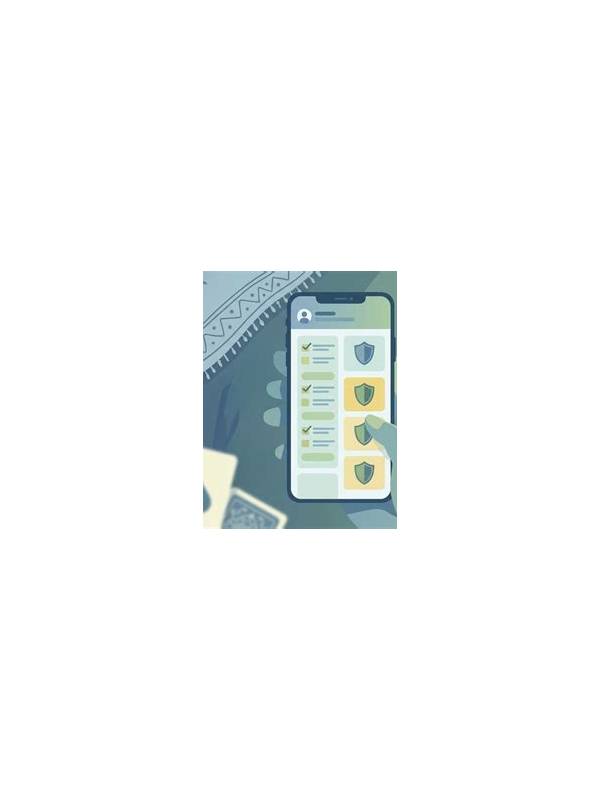
Rummy Safety: Create a Quiet Notification Environment
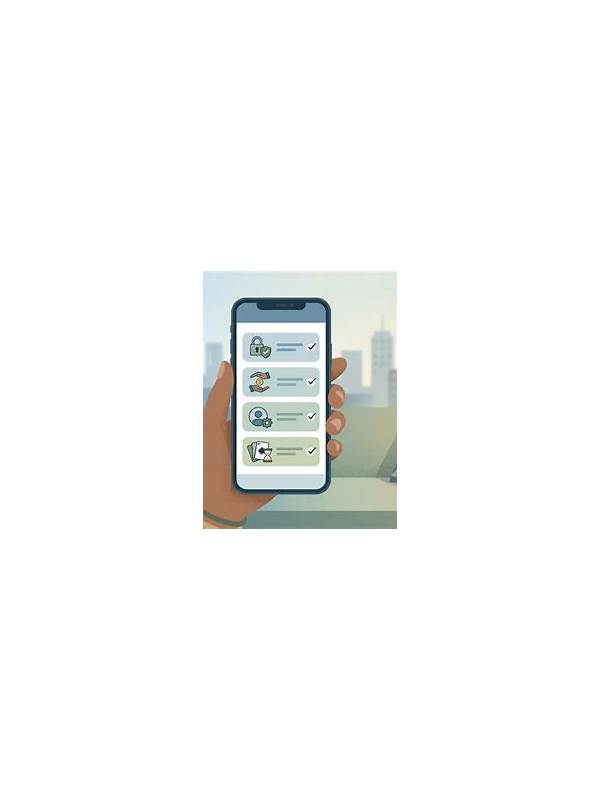
Notifications can interrupt a rummy decision in two ways. A banner may break concentration just as you are checking a declaration, and a message can expose private information on a shared screen. A quiet notification environment is a small preparation step that improves focus and privacy without changing the game itself.
Before starting, review system and app alerts. Silence unrelated chat, shopping, news, and promotional notifications for the planned session. If the game app sends useful turn or connection alerts, keep only those you understand. Disable previews where possible so a message cannot display its contents on a lock screen or shared monitor. Check that notification settings do not accidentally hide a critical timer or system warning.
Use a short test before joining a real table. Lock or minimize the screen and send a harmless test notification from another device, if available. Confirm that private text is hidden and that the game’s own alert behavior is clear. Do not use a public or borrowed device for this test if it could reveal account information. The goal is predictable visibility, not maximum silence.
During play, avoid switching between the game and untrusted alerts. If an urgent message appears, pause only when the rules allow it and verify the sender through a separate trusted channel. Never assume a notification requesting payment, a code, or account details is genuine because it appears beside the game. Close the session safely before handling sensitive requests.
After the session, restore essential alerts and check that you did not leave a privacy setting disabled. A quiet environment should be temporary and deliberate. With a simple before-and-after routine, players can protect attention while keeping important device warnings available. Remember that quiet notifications do not make a device secure. Keep the operating system updated, use a screen lock, and avoid opening links from unexpected messages during play. If the device is shared, sign out of accounts when the session ends and remove temporary previews from the notification center. These steps are especially important when a table involves payments or identity checks. The quiet environment is one layer of safety alongside strong account habits and careful verification. If an alert cannot be silenced without losing an important safety warning, leave it enabled and move the device away from other viewers. Privacy and emergency visibility should be balanced deliberately. Check the notification center after play as well, because old previews may remain visible even when new banners are hidden. Clear them before handing the device to another person.
Related Post
Rummy FAQ: How Can You Tell a Draw Is Improving Structure?
A draw improves structure when it creates clearer legal groups, useful connections, or a safer [...]
Rummy Comparison: Planned Risk Versus Accidental Risk
Planned risk has a defined reason and exit, while accidental risk grows when a player [...]