Rummy Safety: Protect Screenshots From Private Information
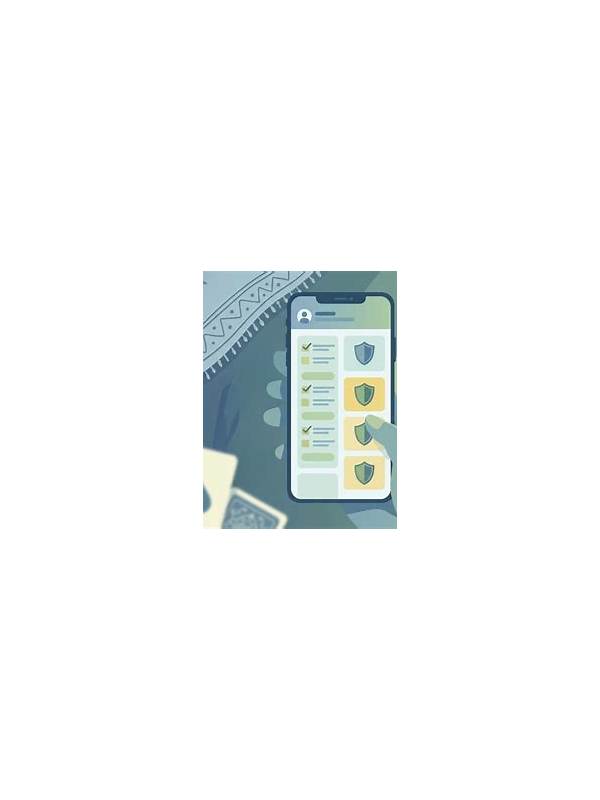
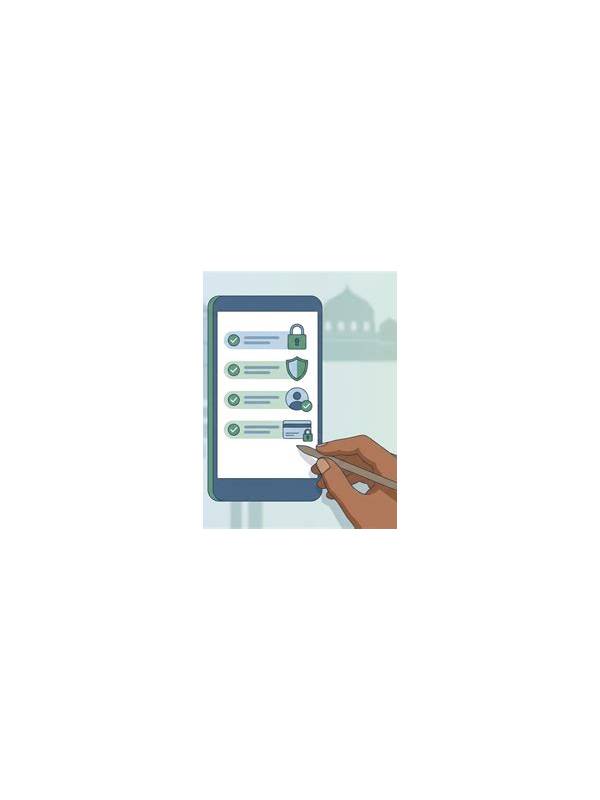
Screenshots can help document an error, confusing rule message, or interrupted table. They can also expose more information than intended. Before saving or sharing one, inspect the entire image rather than focusing only on the problem area.
Check for usernames, account numbers, balances, transaction references, email addresses, phone numbers, notification previews, and device details. A screen may show private data in a corner, a browser tab, or a system banner. Crop the image to the smallest area that demonstrates the issue.
If a support team needs context, record the date, approximate time, page or feature name, and a neutral description separately. Do not add passwords, one-time codes, full payment details, or private identity documents. A legitimate support process should provide a secure method for any information that is genuinely required.
Store screenshots in a private location and use a filename that does not include sensitive information. Review automatic photo backups and shared folders if the device is used by several people. Delete duplicates you no longer need, following the normal recovery options on your device rather than leaving copies in a public album or chat.
When sharing, verify the recipient and channel. Do not send an image to an unverified account that contacted you unexpectedly. If a message pressures you to act immediately, pause and open the official app or website directly.
A useful screenshot is specific, limited, and explainable. It shows the visible problem while revealing as little unrelated information as possible. This approach helps support staff understand what happened and protects you from turning a minor technical question into a privacy incident.
Inspect the image at full size before sending it. Crop or blur private areas, and keep an untouched copy only in a private location if truly needed. If the issue involves a charge or account access, use the official secure support workflow. Add a concise timeline without secrets; a screenshot alone may not prove what happened, and good documentation is accurate, limited, and easy to delete.
Do not let urgency change this routine. A suspicious message may claim that a screenshot or code is needed immediately, but pressure is a reason to verify the request independently. Close the message, open the official route yourself, and share only what that verified process asks for.
Delete temporary copies after the issue is resolved and check shared folders for duplicates.
Privacy is part of accurate troubleshooting, not an extra inconvenience.
Related Post
Rummy FAQ: How Does an Ace Fit Into a Sequence?
Understand the usual ace rule in rummy and avoid treating the ace as both low [...]
How to Review a Rummy Loss Constructively
A structured post-game review separates useful lessons from the emotion of an unlucky rummy result. [...]