Rummy App Update Checks: A Safe Maintenance Routine
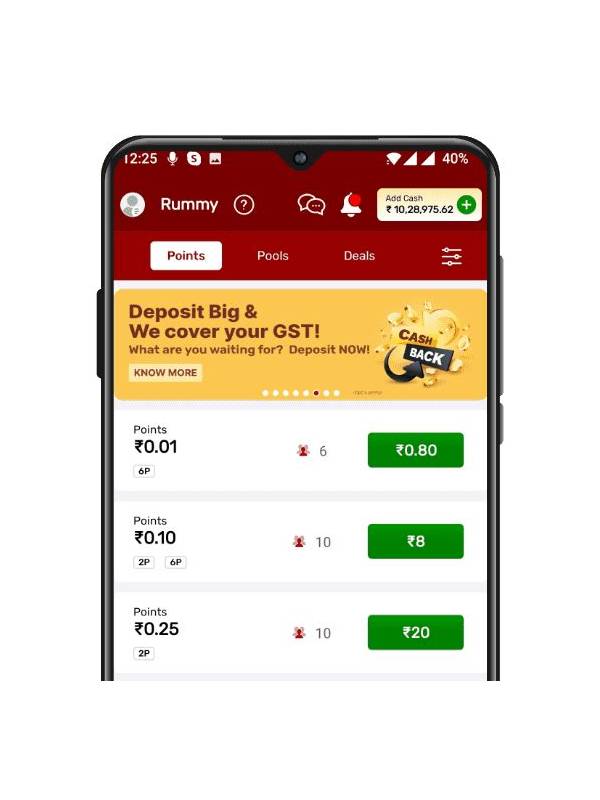
Updates can fix bugs, improve compatibility, and repair security weaknesses, but an update prompt is not automatically trustworthy. A safe maintenance routine verifies the source, checks the device, and avoids rushing into a download while a paid table is active.
Use the normal store route
On a phone, look for the app through the operating system’s official store or the platform’s clearly verified website. Do not install a file received through a random message, pop-up, or unofficial mirror merely because it promises a newer version. Check the publisher name and recent update information for obvious inconsistencies.
Read permissions after updating
An update can change requested permissions. Review access to contacts, location, microphone, storage, and notifications. Grant only what is needed for the app’s stated function. If a card-game app suddenly requests unrelated access, pause and investigate through official support before proceeding.
Prepare the device
Keep enough storage and battery for the update, and use a stable connection. Back up important personal data according to your device routine. Never disable built-in security protections to force an installation. If the app behaves strangely afterward, record the version and error, then contact support through a known channel.
Protect the account
After an update, sign in only within the app. Confirm that the account name and transaction history look normal, and enable available security alerts. Avoid sharing passwords or one-time codes with anyone who claims to be technical support. A legitimate support agent should not need those secrets in a chat.
Maintenance is complete when the app opens normally, permissions remain reasonable, and the account record is intact. If anything looks different, stop transactions until it is clarified. A few minutes of verification is a small price for protecting a device and account.
Before updating, finish or leave any active table according to its rules so the interruption does not create a separate game issue. Afterward, compare the app’s version with the store listing and read the change summary. If the developer, icon, or permissions look inconsistent, do not proceed. Keep a trusted support bookmark available so you never need to search through suspicious advertisements when something goes wrong.
Check storage afterward as well, since failed updates can leave temporary files. If the app cannot open, do not install a second copy from an unknown source. Preserve the error message, restart the device once, and use the official recovery or support instructions.
Related Post
Rummy How-To: Estimate Remaining Useful Cards
A simple outs estimate shows whether a developing group has enough realistic support to keep. [...]
Rummy Tips: Use a One-Card Commitment Limit
A one-card commitment limit helps prevent a narrow idea from consuming the entire hand. [...]