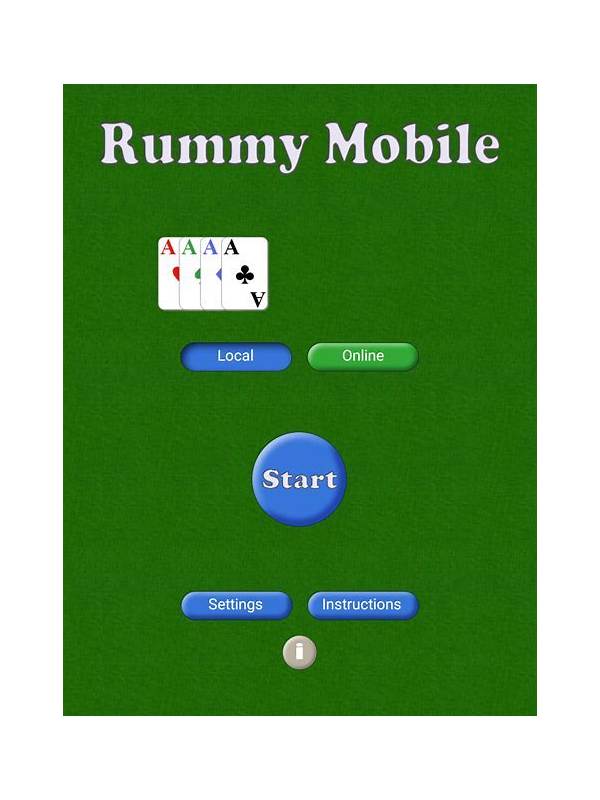
Rummy Language Settings: Avoid Misreading Important Buttons
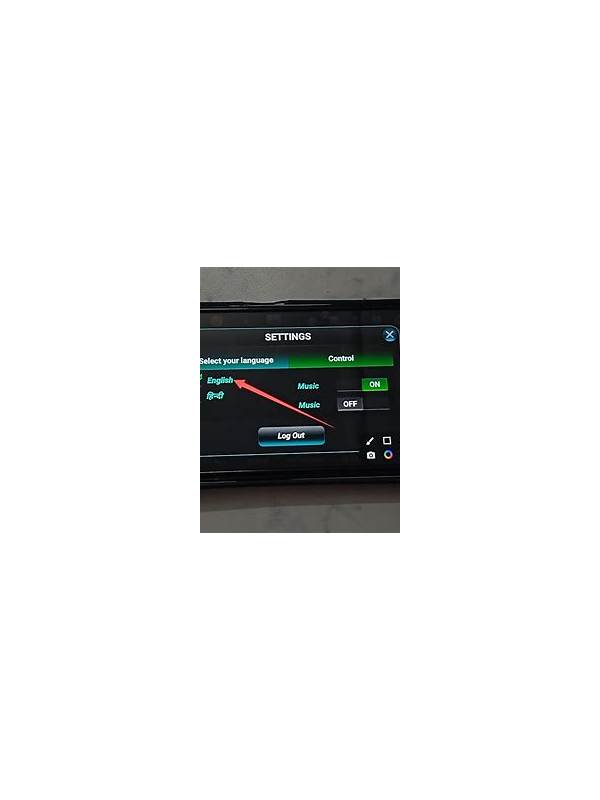
An unfamiliar language setting can turn a simple rummy action into a risky guess. Buttons for draw, discard, confirm, and exit may look similar, especially on a small screen. Checking language preferences before joining a table is a practical safety step for both new and experienced players.
Open the app’s settings from the welcome screen if possible, not during a timed hand. Look for language, region, text size, and notification options. Choose a language you can read comfortably and restart the app if the interface asks you to do so. Do not assume that changing the phone’s system language changes every in-game label; verify the table itself afterward.
Run a harmless visual check in a practice or demonstration area. Identify the location of the draw action, discard action, hand arrangement control, help link, and leave-table control. Read the confirmation text that appears when you exit or submit a declaration. If a translation is awkward, compare the icon, position, and help description rather than guessing from color alone.
Keep important terms consistent in your own notes. For example, use one word for the face-up discard pile and another for the face-down draw pile. If a platform uses a different term, write both once before play. This prevents a familiar rule from being attached to the wrong interface label.
Be careful when using automatic translation overlays. They can cover a button, change the layout, or translate a warning incompletely. Turn them off during a timed round if they interfere with visibility. If text is too small, enlarge the system font or use an accessibility setting before entering a paid table.
If a label remains ambiguous, stop and contact official support through the app’s verified route. Describe the screen and the exact wording without sending passwords, codes, or payment details. Language clarity is part of responsible play: a player should understand an action before confirming it, especially when the action ends a hand or changes an account balance.
If you teach another player, describe the function rather than only the translated word. “This button draws from the face-down pile” remains useful if the interface changes its label later. Keep your own explanation separate from the platform’s official wording, and update it after an app redesign. Familiarity should come from understanding, not from tapping a remembered location blindly. When a platform supports multiple languages, check that help pages and warning dialogs use the same language as the table. A mixed interface can hide an important condition. Save the official help address inside the app rather than relying on a translated search result. Language settings should reduce ambiguity at every important step, including leaving the table.
Related Post
Rummy Tips: Test a Hand With the One-Card-Change Question
Use one focused question to identify the card that would most improve your current rummy [...]
Rummy Guide: Use a Constraint Map to Simplify a Crowded Hand
A small constraint map shows which cards are committed, flexible, or waiting for evidence before [...]