Rummy Safety Guide to Checking a New App Permission
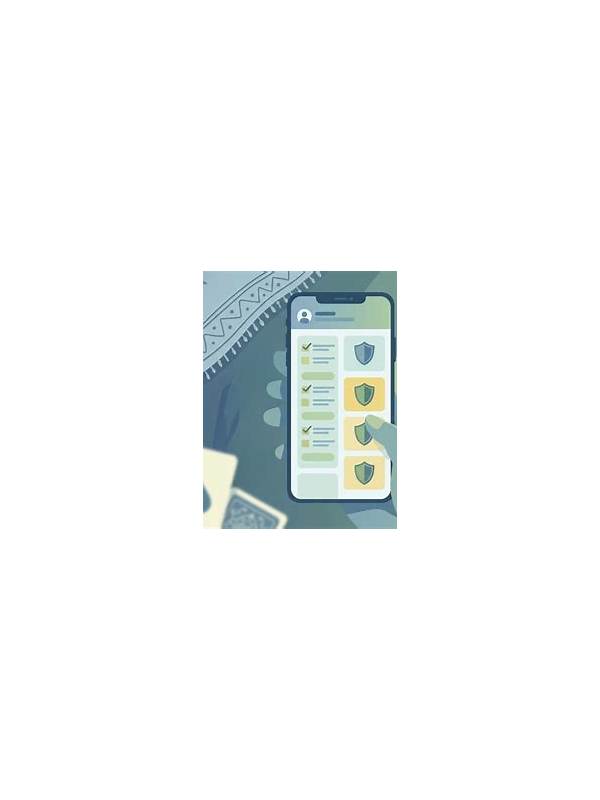
An app’s permission requests deserve attention, especially when the app is installed outside a familiar store. A rummy game may need network access and notifications for normal functions, but unrelated access to contacts, messages, or accessibility controls should prompt questions. Permission review is a simple way to reduce privacy risk.
Read each request
Do not approve every prompt automatically. Android and other mobile systems describe permissions by category, so read the explanation and ask whether the feature truly requires it. A game that requests access to a camera for an optional profile image is different from an app that demands contacts before showing a card table.
Use the least access
If the system offers “allow while using,” “ask every time,” or “don’t allow,” choose the least access compatible with the feature you actually want. You can often grant a permission later from settings. Declining an unnecessary request should not be treated as a reason to weaken other security controls.
Inspect settings after installation
Open the device’s app-permission page and review what was granted. Some users approve a group of requests quickly and forget them. Revoke access that is not needed, then check whether the app still behaves normally. If a basic card game stops working because a sensitive permission was denied, consider uninstalling it and using a more transparent source.
Watch for unusual behavior
Unexpected battery drain, persistent overlays, unexplained messages, or requests to disable security features are warning signs. Do not install a second “cleaner” or “verification” app offered by an unknown contact. Use the device’s built-in security tools and the official support channel instead.
Protect account information
Permissions are only one part of safety. Use a unique password, enable available account protection, and never enter payment details on a page reached through a suspicious pop-up. Keep the operating system updated and avoid storing sensitive screenshots in a shared gallery.
A permission check takes less time than recovering from unnecessary data exposure. Read requests, select limited access, review the final settings, and leave if the app’s behavior does not match its stated purpose.
Also review permissions after major updates, because an app’s requested access can change. Keep installations limited to sources you can verify, and remove apps you no longer use so old access does not remain on the device.
When a permission is essential, the app should explain its purpose clearly and behave consistently after approval. Vague explanations are a reason to pause and investigate before continuing.
Related Post

Rummy Comparison: Drawing From the Pile Versus Taking the Open Card
Comparing information, flexibility, and risk makes the draw choice more deliberate. [...]
Rummy Guide: Manage Several Possible Sequences
A route-ranking method helps you avoid keeping too many competing sequence ideas alive at once. [...]