Rummy Safety: Audit App Permissions Before Playing
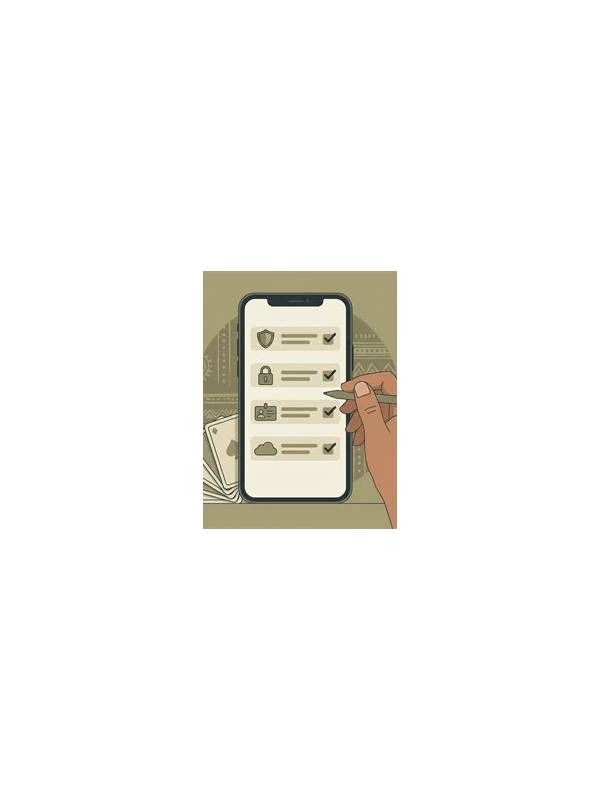
Permission requests deserve attention whenever a player installs or revisits a game app. A rummy app may need limited access for normal operation, but a broad request is not automatically justified. An audit takes only a few minutes and creates a useful boundary between gameplay features and unrelated device data.
Begin in the device settings rather than inside a promotional message. Open the app’s permission page and list what is allowed. Common categories include notifications, photos, camera, microphone, contacts, location, and storage. The exact names vary by operating system. Record the current status before changing anything so you can recognize which setting caused a feature to stop working.
Ask what each permission is supposed to do. Notifications may support table alerts, while a camera or microphone might be relevant only to a feature you deliberately use. Contacts and precise location are more sensitive for a card game and deserve a clear explanation. If the app does not explain a request in its help or privacy information, treat that uncertainty as a reason to pause.
Use the narrowest available option. A one-time photo choice is preferable to permanent access when you only need to select an image. Approximate location is preferable to precise location if location is genuinely necessary. If a feature works without a permission, leave it disabled. Review “always allow” settings especially carefully.
Check the permission page again after an update. Updates can add features, change defaults, or reset a prompt. Also examine notification categories: promotional notifications can often be disabled while essential account or security alerts remain active. This reduces distraction and makes urgent messages easier to notice.
Never grant access because a pop-up claims that a reward, withdrawal, or account recovery will otherwise be guaranteed. Close the prompt and verify the request through the official support path. If the app behaves strangely after a permission change, stop using it, preserve the relevant screenshots, and contact support without sharing passwords or one-time codes. Good device hygiene is part of a focused session, not an obstacle to it.
Related Post
Rummy How-To: Trace a Hand Back From the Last Discard
A reverse review starts with legality and the last discard, then traces whether earlier choices [...]
Rummy Hand Review Using Three Simple Questions
Three focused questions can make a post-hand rummy review useful without becoming a self-criticism exercise. [...]